Schema Editor Features
The Schema Editor provides functionality to embed semantic metadata information into the OpenAPI/JSON Schema of the API. Two key functions are the possibility to configure the SPARQL endpoint, which is then useful for querying RDF-type resources, and the activation of automatic completion for terms and classes.
Configure the SPARQL endpoint
The Schema Editor queries external resources using SPARQL, a language designed to query RDF datasets.
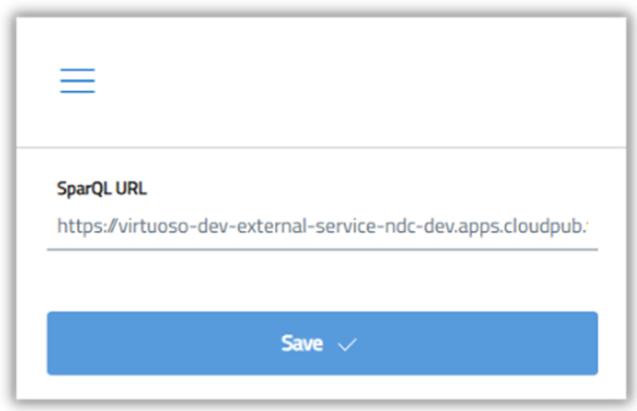
By default, the editor uses the SPARQL endpoint of the Catalogue. However, you can change it to connect to a different SPARQL server, useful for example when working with custom datasets or distributed RDF infrastructures. To do this, click on the burger icon (≡) located in the upper left corner of the interface.
To change the SPARQL endpoint:
- Click on the burger icon (≡) in the upper left corner of the interface.
- Select the Configuration item from the side menu.
- Enter the URL of the new SPARQL endpoint in the dedicated field.
Once the configuration is saved, the editor will use the new endpoint for all queries.
Use autocomplete
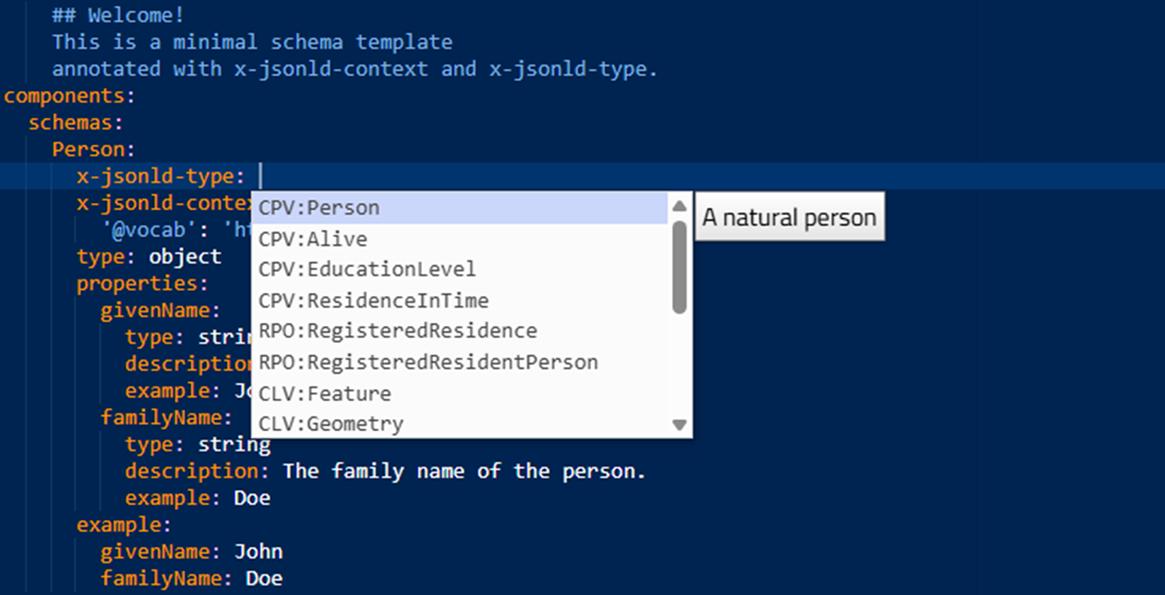
Schema editor is able to automatically suggest terms and classes when typing, based on a selected set of vocabularies available in the schema.gov.it catalog. To use self-completion:
- Pressing the combination CTRL + SPACE It will open a drop-down menu with a list of compatible suggestions;
- By typing in text, the list will be filtered dynamically;
- Pressing SEND on a suggestion, the editor will automatically complete the field with theURI correct for the selected class or property.
This functionality greatly simplifies the insertion of correct references and reduces the risk of invalid syntax or URI errors.
Navigation of the Data Models section
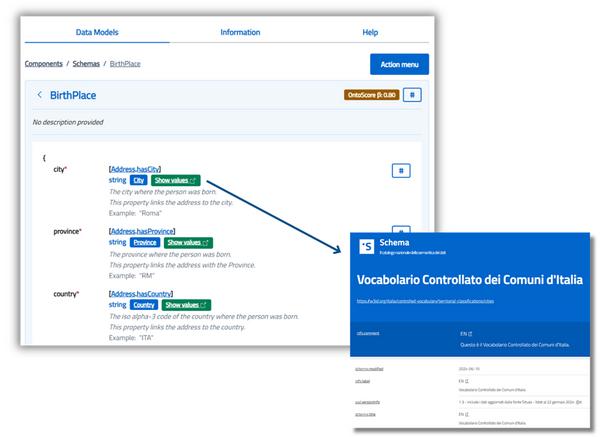
The Data Models section of the Schema Editor provides a structured overview of all RDF classes defined in the schema. It is designed to facilitate the analysis of the properties associated with each class and their semantic links.
Main functionalities
- Automatic display of RDF classes The editor automatically retrieves all RDF classes in the schema. For each class, the following are listed:
• The associated properties;• Semantic links resulting from mappings with reference classes.
- Details for each property Each property displayed is enriched with useful information for understanding the model:
• Syntactic type (e.g. string, number, object);
• Semantic type (associated RDF URI);
• Textual description;
• Usage example, generated according to schema definitions. - OntoScore Calculation – Semantic Coverage Indicator The Schema Editor calculates an indicator called OntoScore, which measures the semantic mapping level of the schema. It is defined as the ratio of the total number of properties present in the JSON Scheme to the number of properties correctly mapped with a rdf:Property. This score helps to assess how semantically aligned the schema is with RDF vocabularies.
- When a class is linked to a controlled vocabulary, the "Show values" button appears. Clicking it, you go directly to the corresponding section on schema.gov.it, where all the allowed values for that property are listed.
Navigation of analysis tools
This section of the Schema Editor collects a set of tools designed for semantic analysis, RDF visualization and JSON-LD compatibility validation. Through different interactive panels, it is possible to explore the structure of the schema, understand its semantic meaning and verify its behavior in real RDF contexts.
Use JSON-LD Playground
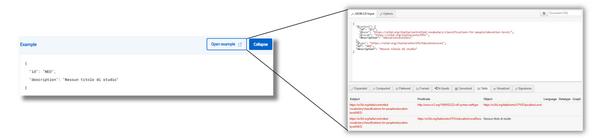
The Schema Editor allows you to automatically generate an example and open it in the external JSON-LD Playground tool. This function allows you to:
- Display the input JSON produced by the schema;
- Examine the JSON-LD context and its @type;
- Get an RDF serialization in Turtle, RDF/XML and N-Quads formats.
This tool is useful for testing the correctness of the semantic representation of data.
Use RDF triplets
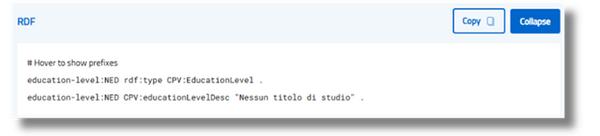
The RDF section shows the schema information in RDF triplets (in the form subject – predicate – object), providing a clear representation of the semantic structure. This view allows you to:
- Visually explore the semantic relationships between entities and properties;
- Verify the consistency of the model with the RDF graph;
- Understand how schema instances will be interpreted in semantic systems
Use JSON-LD Context
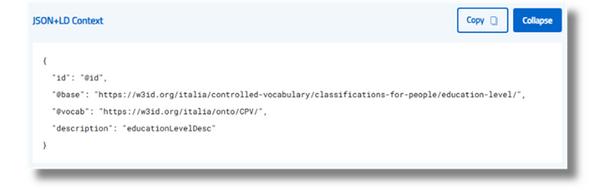
The content of the JSON-LD Context section is automatically generated from the metadata (x-jsonld-type and x-jsonld-context) in the schema. Among the main features:
- Respects the hierarchy of the scheme, maintaining a coherent context;
- Apply automatic context inheritance to child levels, unless otherwise specified;
- Generates output compliant with JSON-LD specifications, ready to be integrated into systems based on RDF ontologies.
This panel is key to ensure effective semantic integration and interoperable data publication.
Use Action Menu
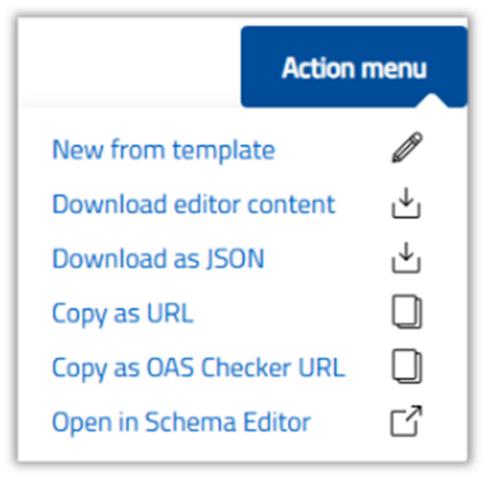
The Schema Editor Action Menu provides quick access to several useful features for managing, exporting and sharing semantic schemas.
It can be accessed via a dedicated button located in the main interface of the editor.
Main functionalities
- Creating a new template You can generate a basic template, containing a single example class: Person, with properties givenName and familyName. This basic model can be used for:
• Exploring the structure and logic of the scheme;
• Easily add new classes and properties;
• Start defining a custom schema, e.g. a semantic model of “Person” with related ontological classes. - The schema currently in use can be downloaded in several formats:
• Native format (“as-is”), useful for direct re-use in the Schema Editor;
• JSON format, suitable for integration into external systems or further processing. - Sharing the scheme
An option is available to copy the schema as a URL, allowing for quick and easy sharing with other users or tools. This link shows a persistent representation of the schema, ready to be opened in the same editor or in compatible environments. - Opening the schema in a remote instance
The same schema can be opened within a previously configured remote instance of the Schema Editor (e.g. in a third-party application or custom environment). This function is particularly useful in contexts where the editor is integrated into a management system, a document portal, or a dedicated semantic development environment.
Consult RDF Helper
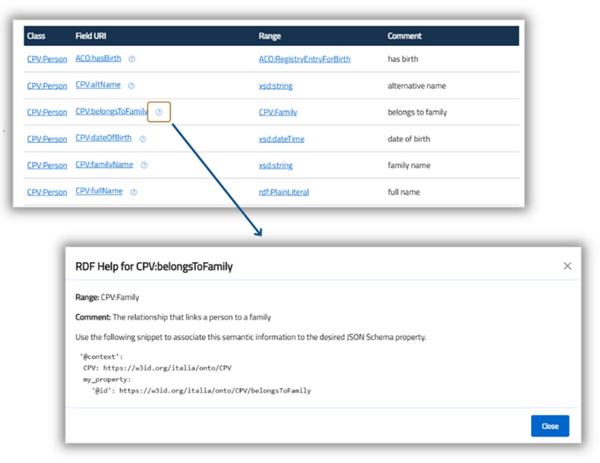
The RDF Ontological Class Helper is an integrated tool in the Schema Editor designed to support users in the advanced semantic design of schemas.
This feature helps to explore the RDF properties associated with a specific semantic class, facilitating the proper mapping of properties and improving the overall semantic quality of the schema.
- The tool automatically performs a SPARQL query on the semantic class indicated in the x-jsonld-type field of the schema.
- All the rdf:Properties associated with the class are retrieved, with useful details for each property, including:
• rdfs:range: indicates the type of expected value (e.g. Literal, URI, etc.);
• rdfs:comment: provide a textual description of the property;
• Example of use: helps to understand how to correctly integrate the property into the scheme.
The properties identified are inserted in an interactive panel, from which the user can analyse them and decide whether or not to integrate them into their model.
This tool is particularly useful for extending the semantic coverage of the schema, ensuring proper alignment with standard RDF vocabularies, reusing existing properties, reducing redundancy and fostering semantic interoperability.